BlackHawk Getting Started
Activating Your BlackHawk
A step-by-step guide to charging, downloading the LiveTrack app, and activating your BlackHawk tracker.
Below is a guide to help you start tracking with your BlackHawk. You can activate two ways — jump straight to the option you prefer:
Jump to LiveTrack Activation Jump to Web Activation
Before You Begin
1
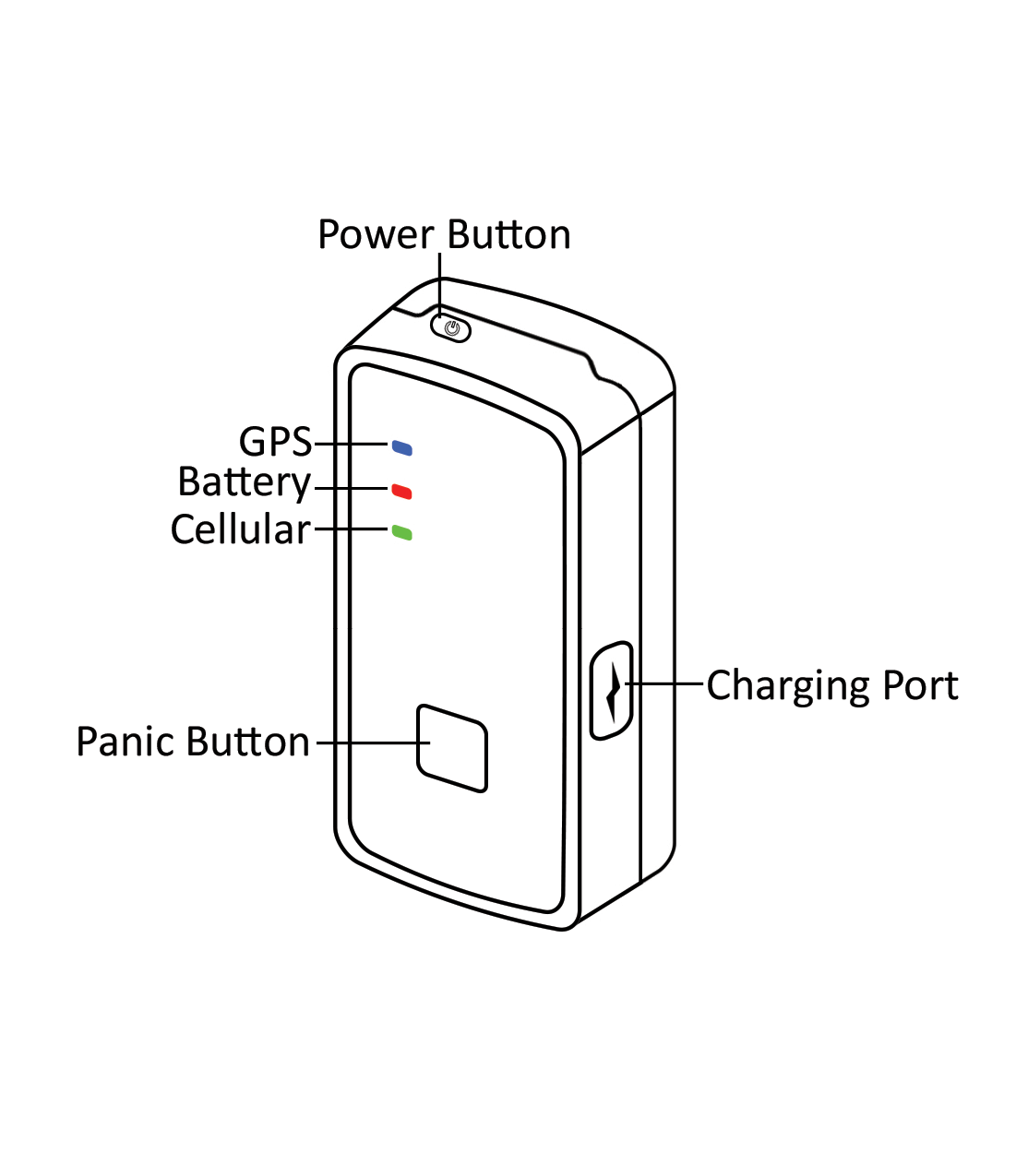
Charge the BlackHawk Plug the included charger into the BlackHawk charging port, then plug the wall charger into an outlet. The red power light will flash while charging and turn solid when full.
?
Tip Charging the BlackHawk fully prior to activation is recommended.
2
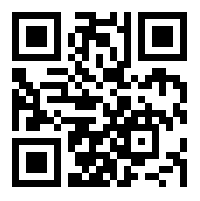
Download the LiveTrack App Use the buttons below or scan the QR codes with your phone's camera. You can also search "Livetrack" in the App Store or Google Play.
| iPhone App | Android App |
 |  |
When searching the stores, look for the LiveTrack app with this icon:  .
.
Option 1: Activate via LiveTrack App
The quickest path — scan the barcode on your Quick Start Guide and follow the prompts.
1
If you have already opened the app, you may see the Login screen. Click the back arrow.
2
Click the Activate Your Device button at the bottom of the screen.
3
Allow the permissions prompts: Notifications, Location (for directions to your device), and Camera (to scan the activation barcode).
4
Scan the barcode found in your Quick Start Guide or on the label on the device.
5
If the scanner does not show Device Found!, tap Enter Code Manually and continue to step 6. If the scanner works, skip to step 8.
6
Enter the Activation Key or the IMEI from the Quick Start Guide. If you don't have the guide, enter the IMEI printed under the barcode on the device label.
7
On the confirmation page, enter the last 4 digits of the key or IMEI you just entered.
8
Give your device a nickname, then tap OK.
9
Enter a valid email address, full name, password, and password confirmation. Toggle I agree to the Terms & Conditions, then tap Next.
⚠️
Use a Valid Email If your email is invalid, you will not receive important notices from Datablaze — including support ticket responses, device alerts, account notices, and billing information.
10
Tap the plan that best suits your tracking needs.
11
Optionally prepay for 3 months, 6 months, or 1 year for a discount. Or tap No Thanks, just bill me monthly until I cancel.
12
Enter your credit card information and tap Confirm & Start Tracking, then Agree to the charge confirmation.
13
A receipt will appear on the next screen, and you'll also receive an email copy.
14
Tap Continue to Device Setup.
15
Follow the remaining prompts to get your first location, set up zones (geofences), enable notifications, and view the map walkthrough. You can configure zones and notifications later under Device Zones and Settings → Notifications.
Option 2: Activate via the Datablaze Website
Prefer a browser? Activate from any device with internet access at my.datablaze.com/activate.
ℹ️
Note Unlike the LiveTrack app, activation through the website requires the Activation Key — the IMEI will not be accepted.
1
Open any web browser. We recommend Google Chrome for the best experience.
2
Go to my.datablaze.com/activate.
3
Enter the Activation Key from your Quick Start Guide.
4
Select Create New Account or Use Existing Account, then click Next.
5
Choose the plan that best suits your needs, then select a prepaid discount option or No Thanks, bill me monthly.
6
Check the box to agree to the Datablaze Terms & Conditions.
7
Enter your billing information and click Next.
8
Review your selections and click Finish.
9
Once activation completes, click the button to log in to your account.
10
Log in and click the name of your device on the device list.
11
Power on the BlackHawk and take it outdoors for 5–10 minutes.
12
You should see a location report from the device appear on the Device Dashboard.
Was this article helpful?
That’s Great!
Thank you for your feedback
Sorry! We couldn't be helpful
Thank you for your feedback
Feedback sent
We appreciate your effort and will try to fix the article